Interested in recipes, nutrition, or research?
Visit eatpecans.com
3. Click on EmailSettings folder
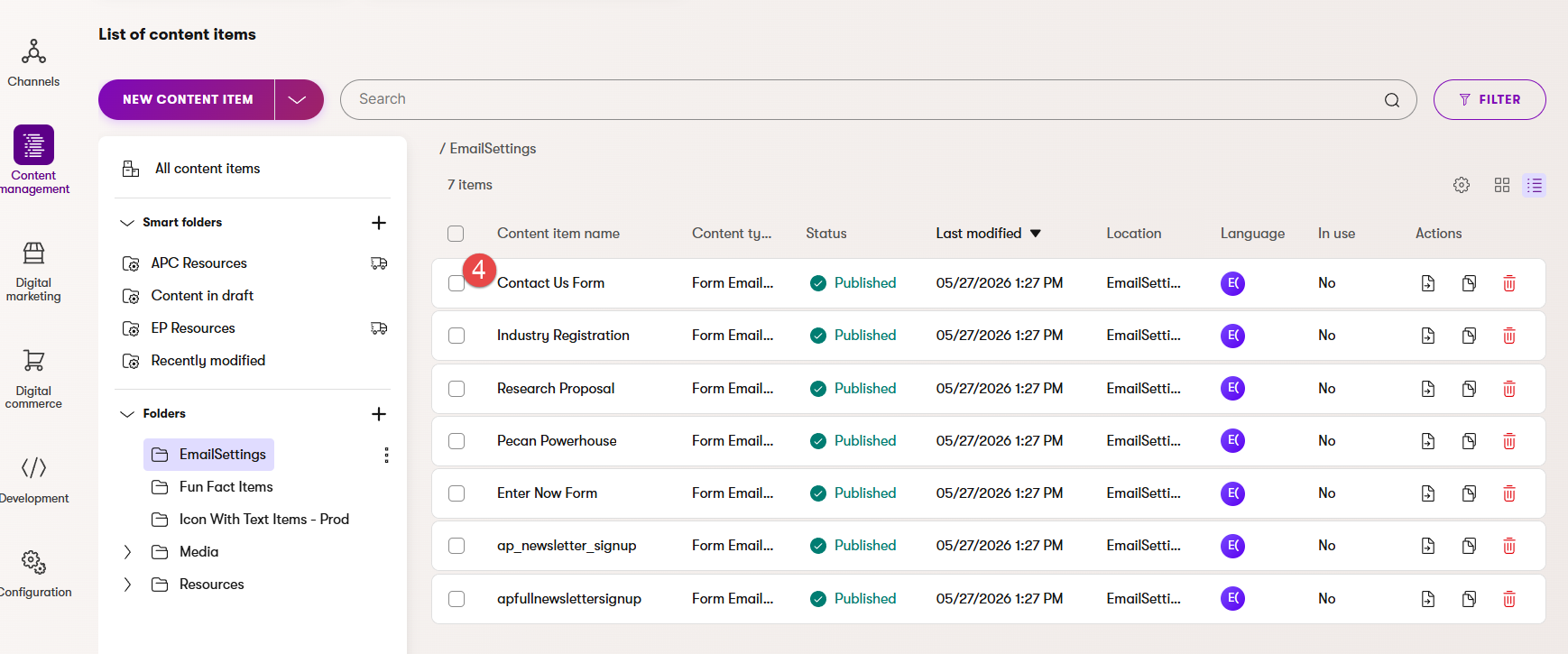
4. Click the form name to which you want to add a recipient email address
5. Click on Edit Content Item button
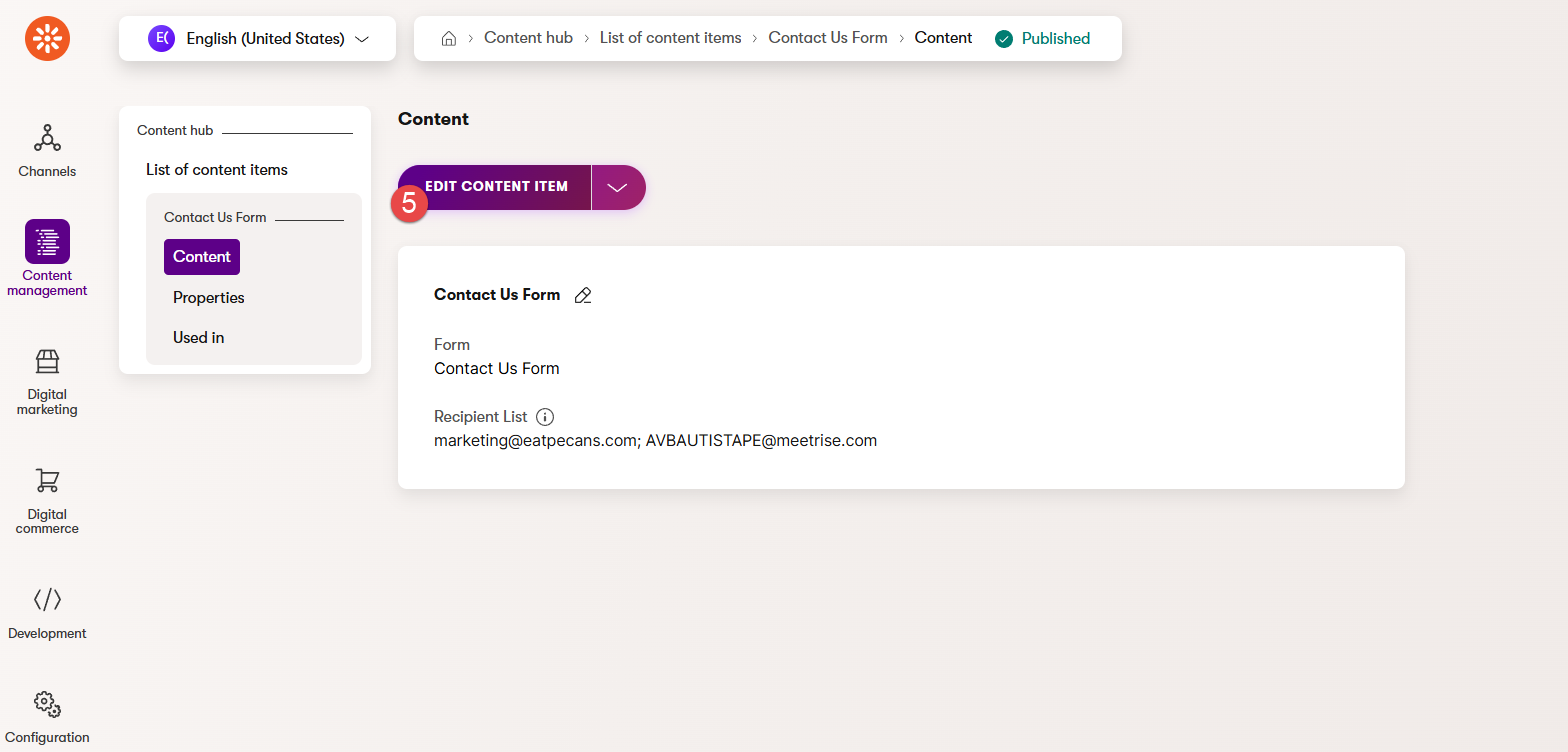
6. In the Recipient List field, add the email address. To add multiple email addresses, separate them with a semicolon (;)
7. Click on Save button
8. Click on Publish button
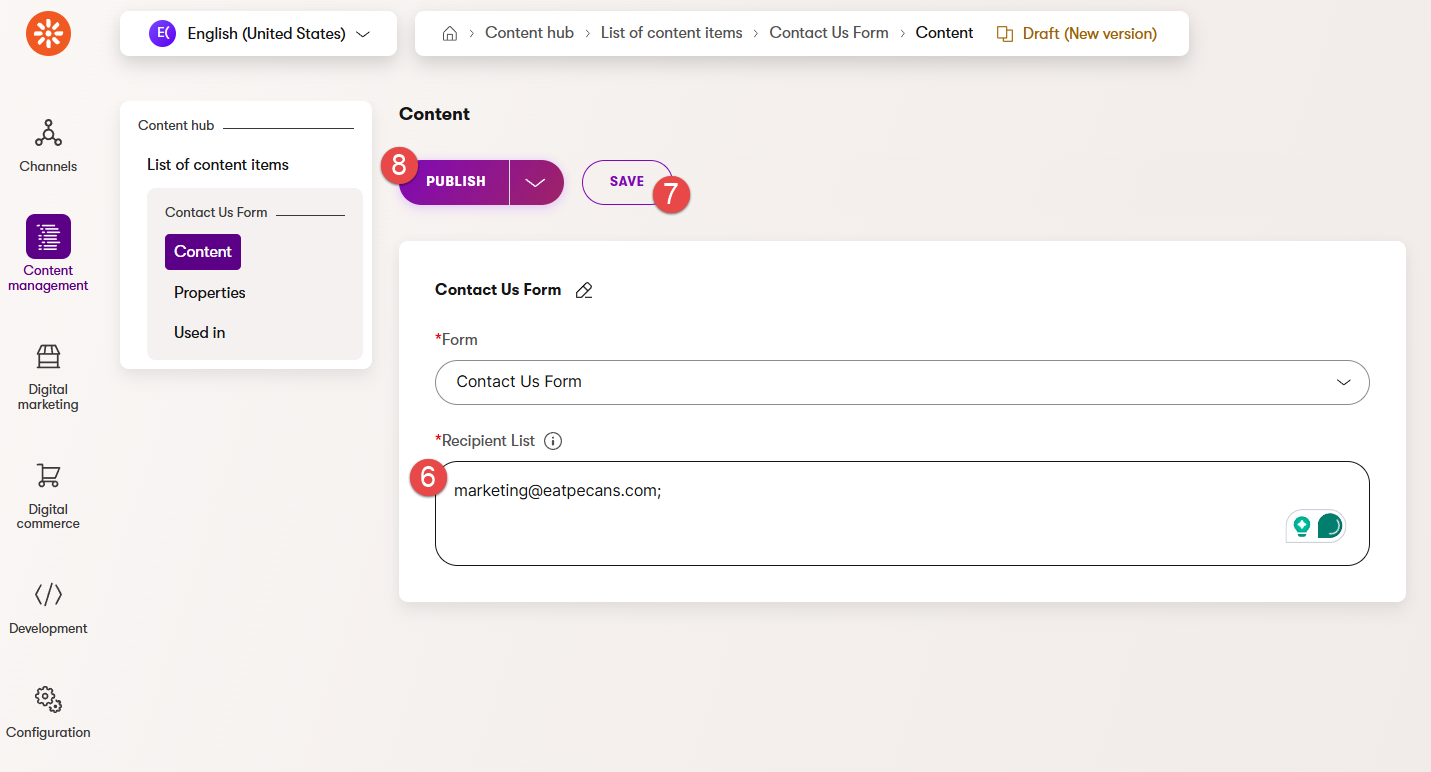
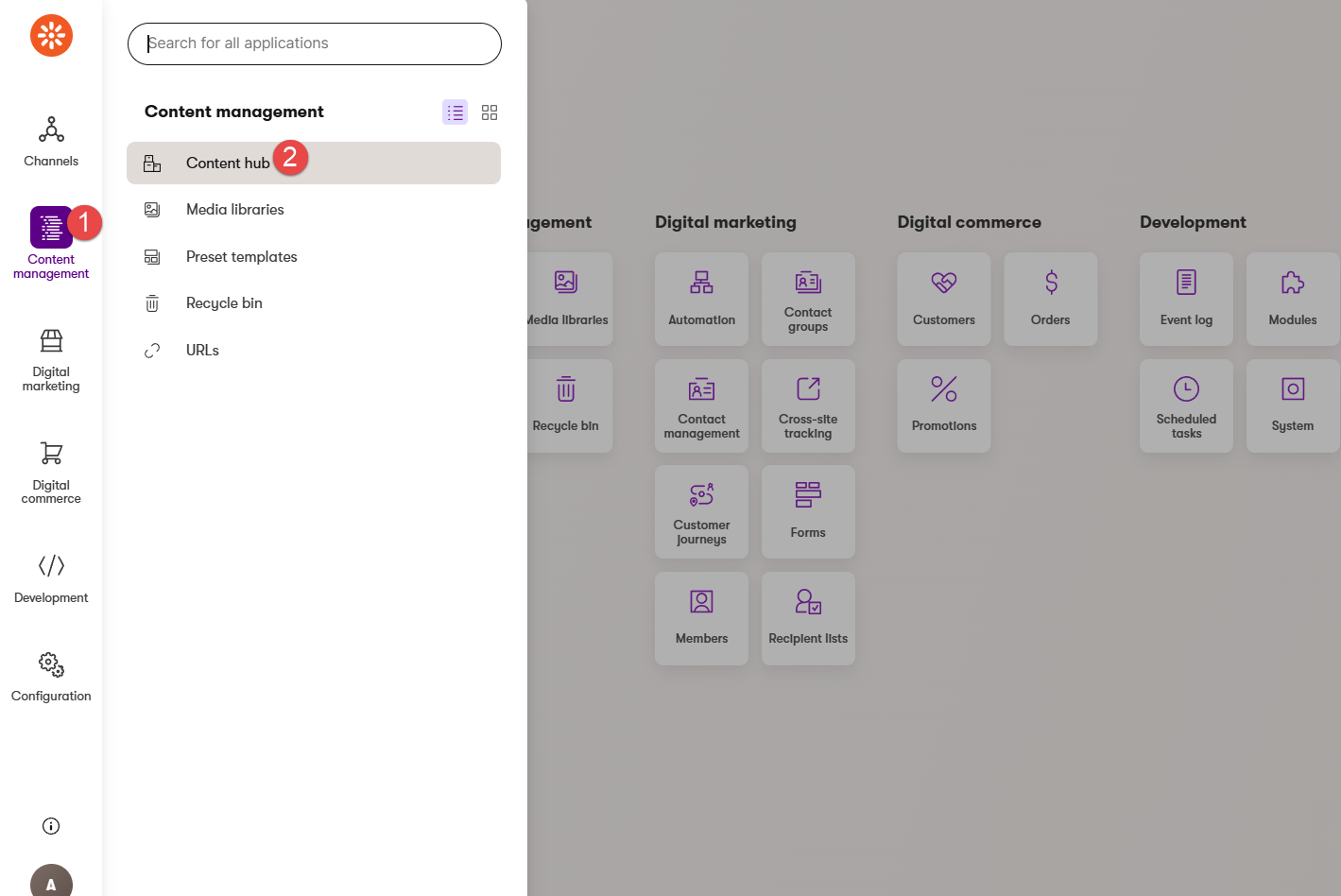
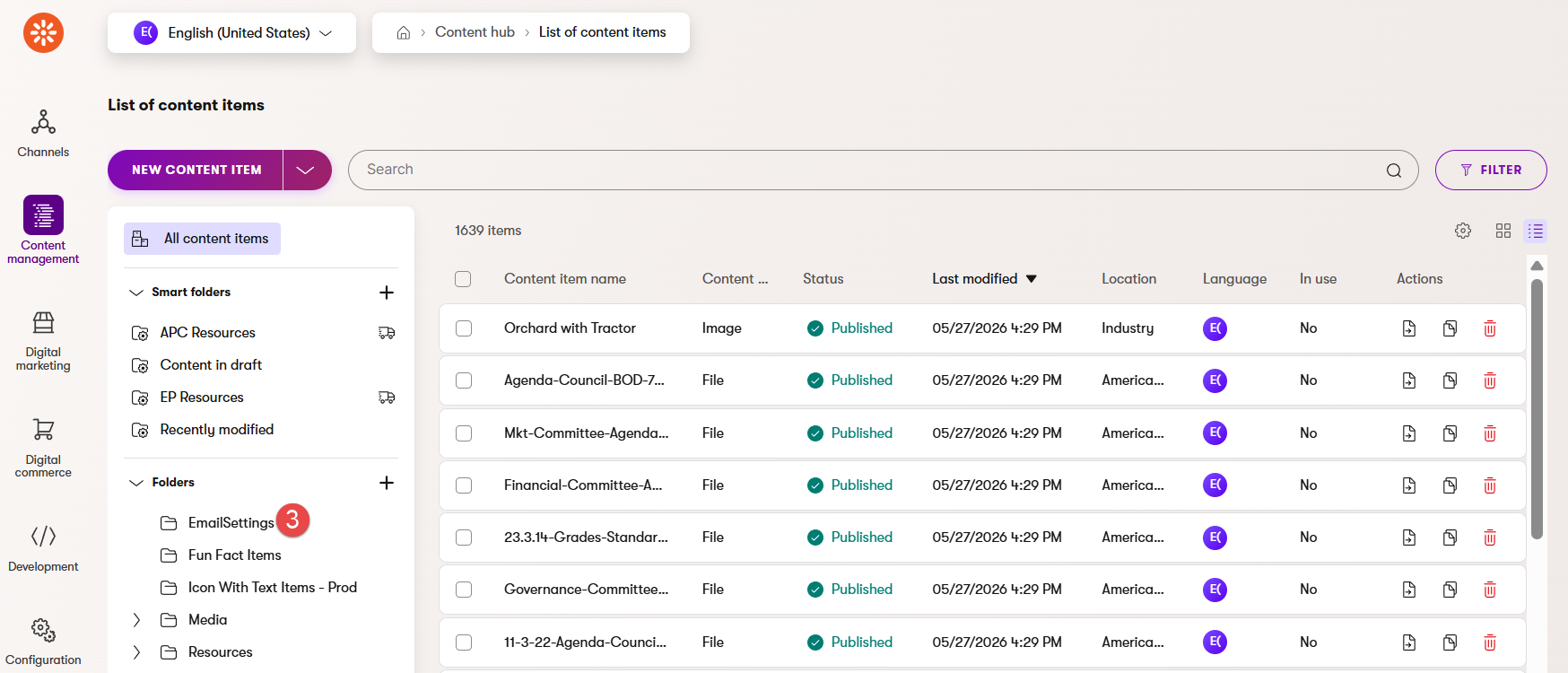
3. Click on EmailSettings folder
4. Click on New Content Item button
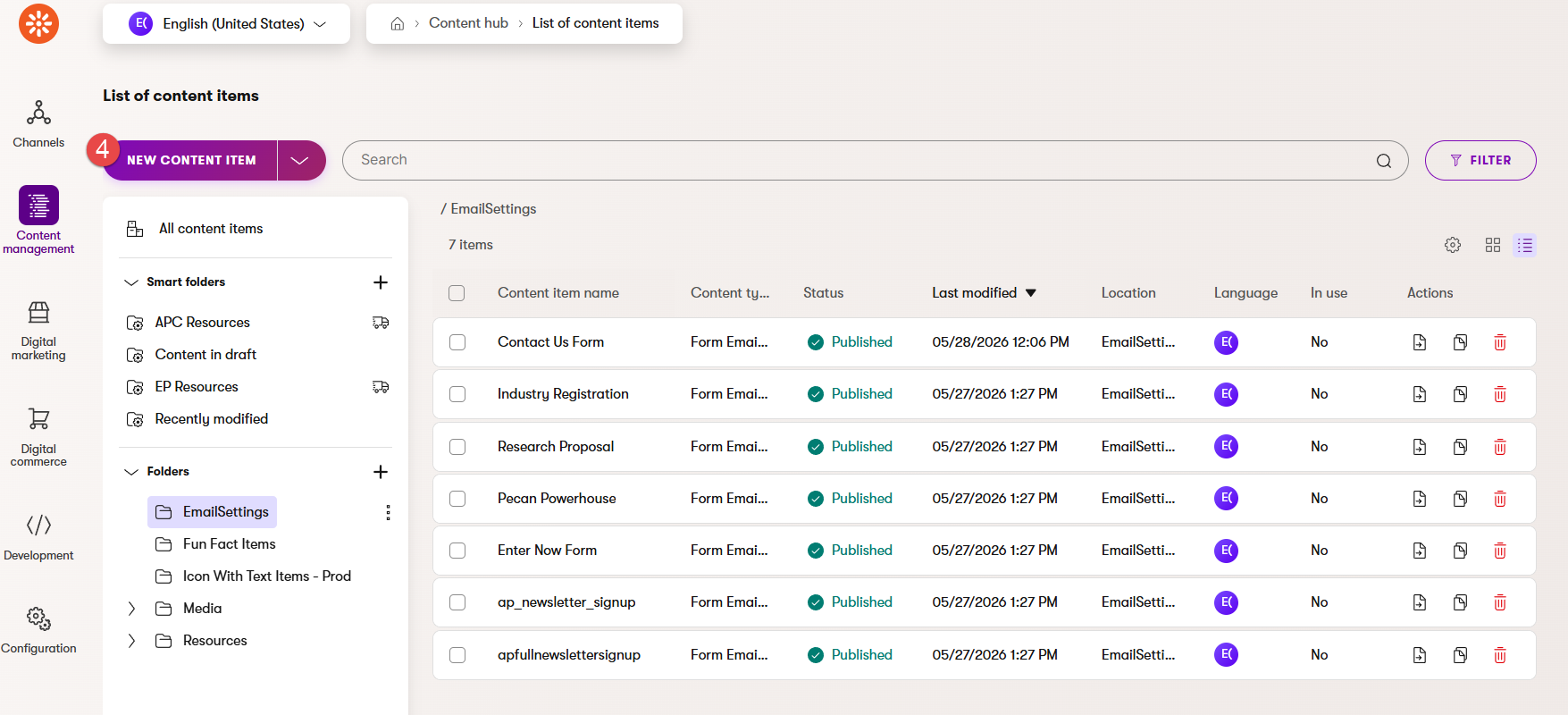
5. In the Content item name field, give a name to the new form.
Rise recommends using the same name as the form you created for the website within the CMS (e.g., Contact Us Form)
6. In the Content Type section select Form Email Recipient List option
7. Click on Continue button
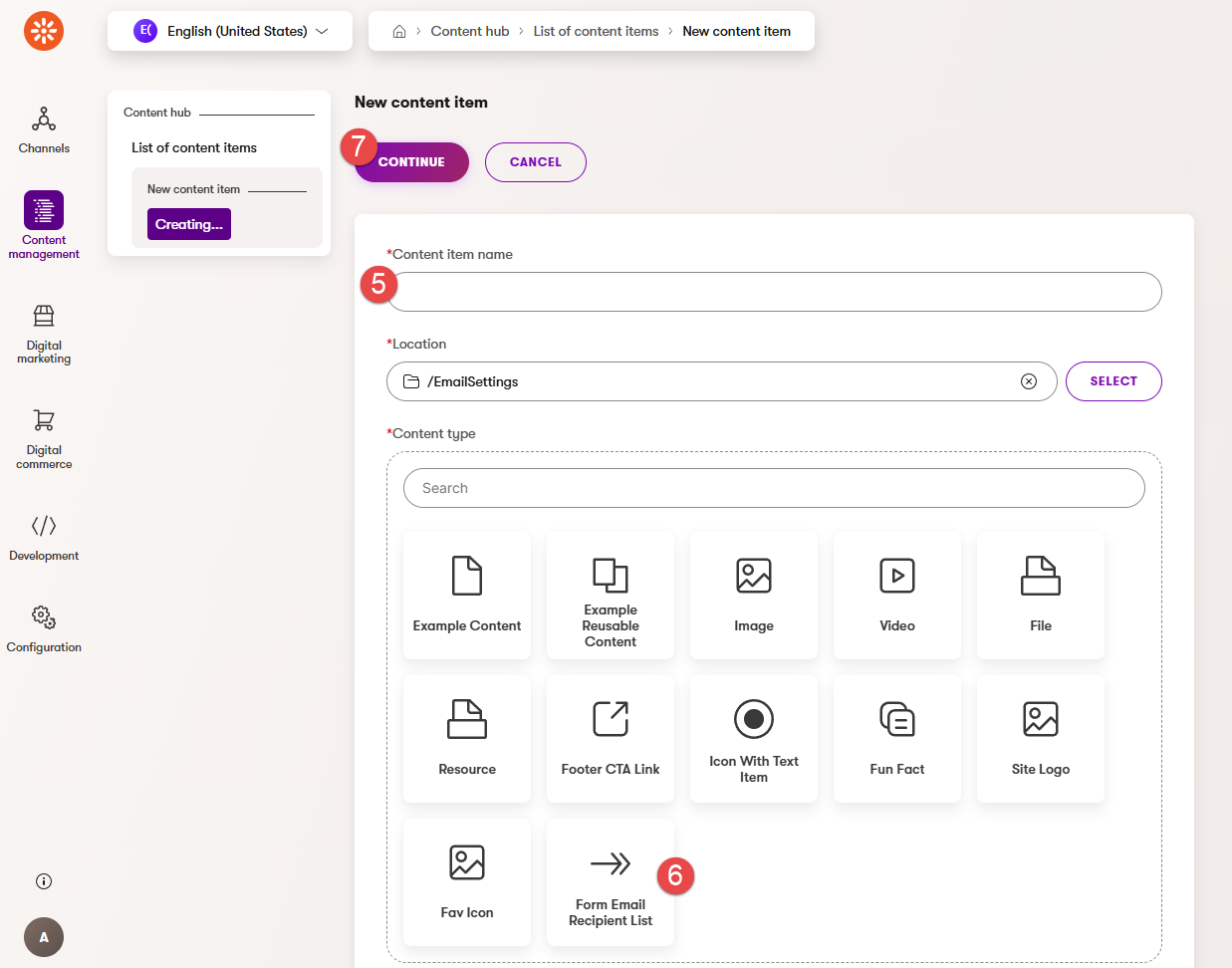
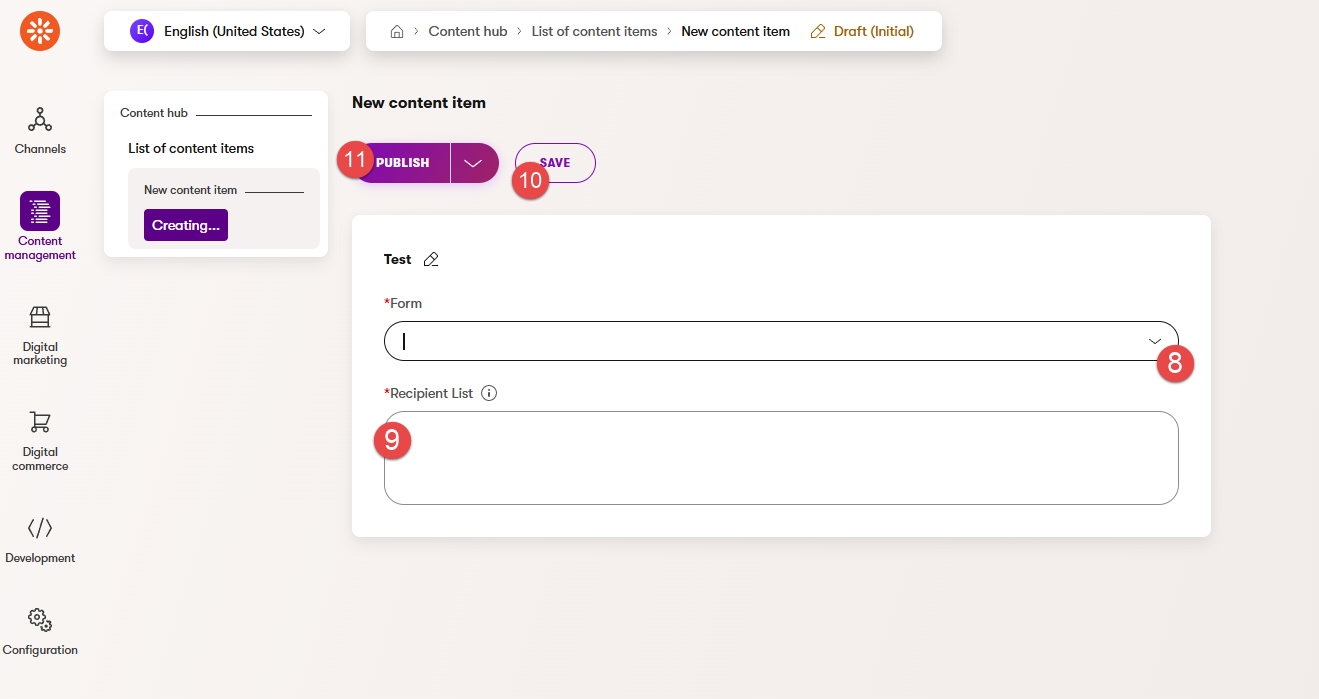
8. Click the Form dropdown and select the form you want to add
9. In the Recipient List field, add the email address. To add multiple email addresses, separate them with a semicolon (;)
10. Click on Save button
11. Click on Publish button